

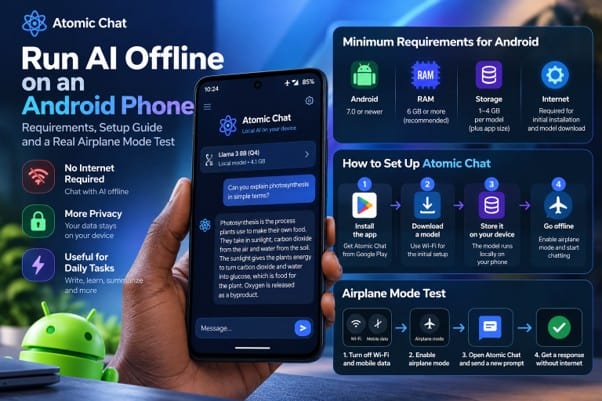
An Android phone can run AI without an internet connection once a compatible model is downloaded to the device. Atomic Chat supports Android 7.0 or newer, and even a phone with 4GB of RAM can run appropriately sized local models.
Some small local models can be distributed in files around 500MB, although Atomic Chat’s Android page currently describes its catalogue as roughly 1GB to 4GB per model; larger options also need more working memory.
The app also offers the 1-bit Bonsai 27B, a heavily compressed 27-billion-parameter model with a 3.80GB download, bringing a much larger model class to mobile devices. The initial download needs internet access, but local text generation does not. This guide explains how to match a model to a phone’s RAM and storage, set it up over Wi-Fi, and verify offline operation in airplane mode.
What Does Offline AI Actually Mean?
Most familiar AI chatbots send a prompt to a remote server and return the result over the internet. An offline AI app instead downloads a language model to the phone and runs the calculations locally.
The model file remains in storage, while part of it is loaded into RAM when a conversation starts. A local answer can therefore be generated without mobile data or Wi-Fi.
Offline does not mean that every feature in an application works without a connection. Installing the app, downloading model files and checking for updates may still require internet access.
A local model also cannot check today’s exchange rate, breaking news or live transport information unless that information is supplied separately. Its knowledge comes from training data and the text included in the conversation.

Check the Phone Before Downloading a Model
The biggest limitation is usually memory rather than the Android version. A model that takes 2GB on disk may need additional working memory for its context and intermediate calculations. Android and other running apps also occupy RAM. This explains why a phone can have enough free storage for a download but still struggle to load the model.
Atomic Chat supports Android 7.0 and newer. Its website recommends 6GB of RAM for the best experience, but that is guidance rather than a strict minimum: smaller models can also run on 4GB phones. Model downloads vary in size.
Atomic Chat’s Android product page lists approximately 1GB to 4GB per model; other compact local models can be smaller, but availability should be checked in the app’s current catalogue. The processor, free RAM, model format and conversation length all affect what a particular device can handle.
| Item | Published requirement or guidance | What to check |
| Android version | Android 7.0 or newer | Settings > About phone |
| RAM | 4GB can run compact models; 6GB+ recommended for more flexibility | Device specifications or Settings |
| Model storage | Approximately 1GB–4GB per model on the Android product page | Free internal storage |
| Connection | Needed for initial model download | Wi-Fi available before setup |
| Offline use | Local conversations after download | Airplane mode test |
On many Android phones, memory information appears under Settings, About phone, Device care or Memory. The menu name varies between Samsung, TECNO, Infinix, Redmi and other brands. Storage information is usually easier to find under Settings > Storage. Leave room beyond the model’s stated file size for the app, downloads and normal phone operation.

How Much RAM Is Enough for Local AI?
A 4GB Android phone can be a perfectly reasonable starting point for offline AI. The key is choosing a compact model rather than assuming that every model needs 6GB or 8GB of RAM.
Very small language models can be distributed in files around 500MB, although the current Atomic Chat Android page lists its model downloads as approximately 1GB to 4GB. Choosing the smallest compatible model offered in the app can make simple writing, summarisation and question-answering practical on modest hardware.
With 6GB or 8GB of RAM, there is more headroom for larger models and longer conversations, but speed still depends on the processor and available memory. Atomic Chat recommends 6GB or more for its best experience, not as a universal requirement for launching local AI.
Model names often include numbers such as 1B, 3B, 7B or 27B, referring to billions of parameters rather than gigabytes on disk. Quantisation stores model weights with fewer bits, which can make surprisingly capable models fit into much smaller files. A small 1B-class model remains a sensible choice for a 4GB handset.
Yet parameter count alone does not determine whether a model can run on a phone: its compressed format and the inference engine matter too. Atomic Chat’s support for the 1-bit Bonsai 27B (3.80GB, Q1_0) is an example of why file format can change the practical limits of mobile AI.
Bonsai 27B: A Large Model Designed for Mobile
One of Atomic Chat’s more distinctive features is its inference engine for highly compressed models. It can run Bonsai 27B, the earlier July release from Prism ML’s Bonsai family, in a 1-bit Q1_0 format with a 3.80GB download.
This is not Bonsai 2 27B, the newer Qwen 3.8-based ternary model that Atomic Chat cannot currently load. That is unusually compact for a model of this parameter class, and it makes a larger-model option accessible on mobile hardware rather than limiting local AI to tiny chat models.
Bonsai 27B should not be confused with a 500MB starter model. Its download is larger and its memory and processing needs can be higher, so a compact model remains the better first choice on a 4GB phone.
For more capable devices, Bonsai demonstrates the advantage of an inference engine built to handle aggressive model compression: model size on disk is no longer a straightforward indicator of parameter count. A Qwen-family foundation also does not guarantee identical speed or output quality to an uncompressed Qwen model.
How to Set Up Atomic Chat on Android
One practical option is Atomic Chat, a local-AI application available for Android. Its Android page describes a free app with no account requirement and model downloads that remain on the device. The setup is straightforward, but the first download should be completed on a reliable connection rather than on a limited mobile-data plan.
Step 1: Install the app
Open the official Atomic Chat website and follow its Google Play link, or find the publisher’s listing in Google Play. Check the app name and publisher before installing. Avoid unrelated APK mirrors, especially when a site presents several competing download buttons.
Step 2: Check available space
Open Android’s storage settings and compare the available space with the actual download size shown in the app. Some compact local models outside the published Android size range are around 500MB, but Atomic Chat’s Android page lists its models at roughly 1GB to 4GB.
The model catalogue and its displayed download sizes are the best reference for a particular installation. Bonsai 27B, for example, is offered in a roughly 3.8GB 1-bit package. Allow extra space for the application and temporary files, and start with one model rather than filling the phone with several downloads.
Step 3: Download a small model over Wi-Fi
Open the model selection area and choose one of the smaller models compatible with the phone. Wait until the download is fully complete before disconnecting. An interrupted download may leave a model unavailable for local use. The exact model names and download buttons can change as the app’s catalogue is updated.
Step 4: Ask a question while connected
Start a conversation and ask for a simple answer, such as a three-sentence explanation of how solar panels generate electricity. This confirms that the model loads and that text generation works before the network is disabled. It does not, by itself, prove that the response was produced offline.
The Airplane Mode Test: Does the AI Really Work Offline?
A proper offline test needs a fresh answer after connectivity has been disabled. An old conversation appearing on screen is not enough: cached messages can remain visible even if the model cannot run. The following procedure separates stored chat history from actual on-device generation.
A five-step verification
- Finish the model download and confirm that a connected test prompt receives a response.
- Enable airplane mode. Then check that both Wi-Fi and mobile data are off; some phones allow Wi-Fi to remain enabled in airplane mode.
- Fully close the app and reopen it. This makes the test more meaningful than simply reading an answer already on screen.
- Start a new chat and submit a new prompt, such as: “Explain the difference between RAM and phone storage in four sentences.”
- Record whether a new response appears, how long it takes and whether the app shows a connection or model-loading error.
A response generated after the app has been reopened with all networking disabled is strong practical evidence of local operation for that particular model and task. It does not prove that every feature is offline or that the app never makes network requests when connectivity returns. A more rigorous privacy audit would also inspect traffic while the phone is connected.
No independent handset test was performed for this article. The procedure is provided so that readers and editors can reproduce it, rather than presenting an invented phone model, generation speed or screenshot as a measured result.
What to Do If the Offline Test Fails
If the model will not open, first check whether its download actually finished. Reconnect to Wi-Fi, inspect the model’s download status and retry if necessary. If the app closes while loading, free RAM by closing demanding background apps and select a smaller model. Free storage is not a substitute for free RAM.
If the app opens but produces text very slowly, reduce the requested answer length and start a new conversation. Long chat histories increase the amount of context the model must process. Phone temperature and battery-saving settings can also affect sustained performance. A slower response is not necessarily evidence that the app is contacting a remote server.
If the app requests a network connection, verify that the selected model is downloaded and that the current chat is using the local model rather than a feature requiring an online service. Record the exact error message and Android version before seeking support.
When Is Offline AI Worth Using?
Local AI is useful for rewriting a paragraph, drafting an email, brainstorming ideas or explaining a passage of text when internet access is unavailable. For a student travelling between areas with weak reception, or a small-business owner trying to conserve mobile data, the ability to reuse a downloaded model can be more valuable than access to the largest cloud model.
There are trade-offs. Small on-device models may misunderstand complex instructions, make factual errors or perform poorly on specialised questions. They are not substitutes for a live web search, professional advice or a larger model when accuracy is critical. Keeping prompts on the device can reduce cloud exposure, but sensitive information still depends on the phone’s security, app permissions and backup settings.
Frequently Asked Questions
Can a 4GB Android phone run offline AI?
Yes. A 4GB Android phone can run compatible small models. Atomic Chat recommends choosing smaller models on devices below 6GB of RAM; its Android page lists typical model downloads of approximately 1GB to 4GB. Choosing a small model and keeping background memory use low is more important than meeting a blanket 6GB threshold. Atomic Chat recommends 6GB or more for a smoother experience with a wider selection of models.
Does offline AI use mobile data after the model is downloaded?
Local text generation does not require mobile data. Installing updates, downloading other models and using online features can still require a connection.
Is offline AI the same as private AI?
Not exactly. Running inference on the device avoids sending that local prompt to a cloud model, but device backups, permissions and other application features still matter.
Why does a downloaded model fail to start?
The model may need more RAM than the phone can make available, or the download may be incomplete. Trying a smaller model is usually the simplest diagnostic step.
The Bottom Line
Offline AI on Android is practical when the model is small enough for the handset and its files are downloaded in advance. Check Android compatibility, RAM, and free storage first; then verify local generation by reopening the app in airplane mode and sending a fresh prompt. The result on that device matters more than an app’s offline label or a model’s parameter count.