

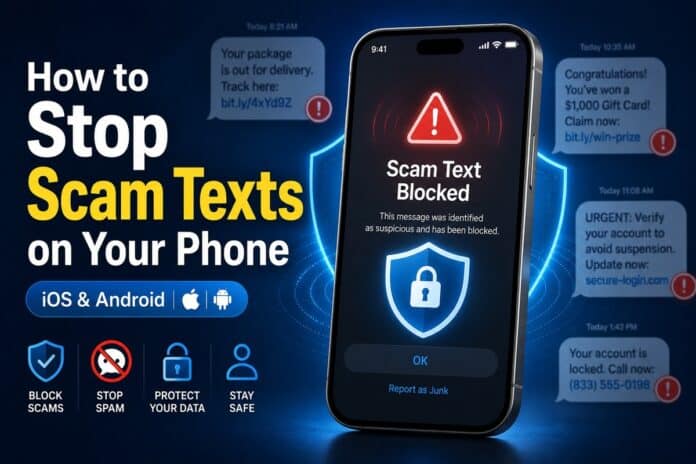

Scam texts have quietly become one of the most common threats on your phone. They arrive disguised as a missed delivery, an unpaid toll, or a “your account has been locked” alert, all engineered to catch you off guard. And they’re not rare: as of late 2023, Americans were receiving an average of 19.2 billion spam texts per month, nearly three times the volume of 2021, and SMS scams now make up roughly 35% of all phishing attempts worldwide.
If you want to know how to stop scam texts for good, from the free settings already on your phone to the tool that blocks smishing automatically, this guide covers every method for both iPhone and Android.
How to stop scam texts: quick answer
To stop scam texts, turn on your phone’s built-in spam filtering (Filter Unknown Senders on iPhone, Spam protection on Android), forward scam texts to 7726 (SPAM) to report them, and use a dedicated scam text protection tool like Surfshark to automatically detect and filter smishing before you ever tap a link. Built-in filters help, but a dedicated tool catches the sophisticated scams that slip through.
What is a scam text (smishing)?
“Smishing” is phishing over SMS. Instead of an email, the scammer sends a text designed to trick you into tapping a link, calling a number, or handing over sensitive details like your bank login, card number, or Social Security / Social Insurance number.
Modern smishing is hard to spot precisely because it’s polished. The days of obvious spelling mistakes are fading; today’s scam texts copy the tone, formatting, and even the sender names of real banks, delivery companies, and government agencies.
Common scam texts you’ll recognize
- Delivery scams: a fake “USPS,” “Royal Mail,” “Canada Post,” or “DHL” text says your package is held pending a small fee or address confirmation.
- Unpaid toll scams: a text claiming you owe an E-ZPass, FasTrak, or highway toll, with a link to “pay now” before a penalty hits.
- Tax and refund scams: messages impersonating the IRS, CRA, or HMRC about a refund you can claim or a debt you must settle.
- Bank fraud alerts: “Did you make this $500 purchase? Reply NO to cancel,” designed to make you call a fake number or hand over a login code.
- “Wrong number” scams: a friendly stranger texts the wrong person, then slowly builds trust to pull you into an investment or crypto con.
The pattern is always the same: urgency + a link + a request. If a text pushes you to act fast and tap something, treat it as suspicious.
4 Ways to Stop Scam Texts
Here are four ways to protect yourself from scam texts:

Method 1: Use your phone’s built-in spam filtering
Both iOS and Android ship with basic filtering. It won’t catch everything, but it’s free and worth turning on.
How to stop scam texts on iPhone (iOS)
- Open Settings.
- Go to Apps > Messages.
- Turn on Filter Unknown Senders.
This moves texts from numbers not in your contacts into a separate “Unknown Senders” tab. They won’t trigger notifications, but they still land in your inbox, so this filters them; it doesn’t truly block them.
How to block scam texts on Android
- Open the Messages app.
- Tap your profile icon > Messages settings.
- Select Protection and safety or spam protection, and turn on Enable spam protection or Spam protection.
Android’s built-in detection flags some obvious spam, but coverage varies by device and carrier, and sophisticated smishing often slips through.
Method 2: Report scam texts to 7726 (SPAM)
Reporting scam texts helps your carrier and regulators shut down the source, and it works across the US, Canada, and the UK:

- Forward the text to 7726 (which spells “SPAM”). Your carrier uses these reports to block scam numbers network-wide.
- iPhone: tap and hold the message > More > forward it to 7726. You can also tap the sender and choose Block this Caller, and use Report Junk on filtered messages.
- Android: long-press the conversation > Block / Report spam, or forward the message to 7726.
- Report to the authorities too: the FTC at reportfraud.ftc.gov (US), the Canadian Anti-Fraud Center (Canada), or Action Fraud / forwarding to 7726 (UK).
The catch: scammers rotate through thousands of disposable numbers. Blocking one does nothing about the next hundred. Reporting is good hygiene, but it’s reactive; you’re always one step behind.
Method 3: Cut down marketing spam at the source
Separate from criminal scams, you can reduce legitimate marketing texts:
US: register your number with the National Do Not Call Registry (donotcall.gov) and reply STOP to unwanted marketing texts.
Canada: add your number to the National Do Not Call List (lnnte-dncl.gc.ca).
UK / Europe: reply STOP, and register with your national preference service (e.g. the UK’s TPS).
This trims marketing clutter, but note it does not stop criminal smishing, since scammers ignore these lists entirely.
Method 4: Block scam texts automatically with Surfshark
Here’s the limitation of every method above: they rely on you to spot, report, or filter after the fact. Sophisticated scams are built to get past exactly that.
This is where a dedicated tool changes the game. Surfshark’s scam text protection screens incoming messages in real time and deals with the dangerous ones before you interact with them; no need to become a fraud expert yourself.
How Surfshark scam text protection works
When a message arrives, Surfshark analyses it against known scam signatures and suspicious patterns, checking the sender’s number, any URLs, and the message content using AI-driven detection. If it looks like a scam, here’s what happens:
On iPhone (iOS): the scam text is automatically moved to your Spam folder in the native Messages app. You don’t get a notification, and it never reaches your main inbox; the scam is neutralized silently. You can still review or recover filtered messages if you ever need to.
On Android: you get a notification that a scam arrived. Tapping it opens the message inside the Surfshark app in a controlled environment, where you can safely read it and see exactly why it was flagged with zero risk of accidentally tapping a malicious link.
There’s also a neat touch for US users: the dashboard estimates how much money you likely saved by avoiding each fraudulent text, so you can see the protection paying off.
Crucially for privacy: Surfshark says the feature does not store your messages, monitor your phone generally, or use your data to train AI models.
How to set up Surfshark scam text protection
On iOS:
- Open the Surfshark app and go to the Antiscam tab.
- Select Text message protection and tap Turn on.
- Open your iPhone Settings > Apps > Messages.
- Tap Screen Unknown Senders, then Text Message Filter, and select Surfshark.
On Android:
- Open the Surfshark app.
- Scroll to Text message protection.
- Tap it and follow the on-screen instructions.
Tip: Update the Surfshark app from the App Store or Google Play first; the feature may not appear until you’re on the latest version.
Get Surfshark scam text protection here
Which Surfshark plan do you need?
Scam text protection is part of the wider Surfshark scam protection hub and is included with Surfshark One and Surfshark One+ plans, not the standalone VPN. Those plans also bundle antivirus, a data-breach alert system, and tools to protect your personal information, so you’re getting a full security suite rather than a single feature.
Compare Surfshark One and One+ plans
Quick habits that keep you safe from smishing
Even with automatic protection, keep these reflexes sharp:
- Never tap links in unexpected texts; go to the official app or website directly.
- Banks, delivery services, and tax agencies won’t ask for your PIN, card details, login codes, or SSN/SIN by text.
- Slow down. Urgency is the scammer’s main weapon; a real institution gives you time.
- Verify the sender through official channels, not the number that texted you.
Frequently asked questions about stopping Scam Texts
Can you completely stop scam texts?
You can’t stop scammers from sending them, but you can stop them from reaching you. Built-in filters help a little; a dedicated tool like Surfshark’s scam text protection blocks the dangerous ones automatically before you interact with them.
How do I stop scam texts on my iPhone?
Go to Settings > Apps > Messages and turn on Filter Unknown Senders, then forward scam texts to 7726 and block the sender. For automatic protection, add Surfshark as a text message filter under Settings > Apps > Messages > Screen Unknown Senders.
How do I block scam texts on Android?
Open Messages > Messages settings > Spam protection and enable it, then report spam or forward it to 7726. For stronger, automatic detection, use Surfshark’s scam text protection, which alerts you and lets you review flagged texts safely in-app.
What is the 7726 number for scam texts?
7726 spells “SPAM” on your keypad. Forwarding a scam text to 7726 reports it to your mobile carrier (in the US, Canada, and UK) so they can block the number across their network.
Do scam text blockers read my private messages?
Surfshark’s scam text protection analyses messages to detect scams but says it does not retain your messages or use your data to train AI models. Always check the privacy terms of any tool you install.
Is scam text protection free?
It’s included with Surfshark One and Surfshark One+ subscriptions rather than offered as a free standalone app.
The bottom line
Free phone settings and reporting to 7726 are worth doing, but they’re reactive and easy for modern scams to slip past. If you want scam texts handled before they can trick you, automatic detection is the real fix.
Try Surfshark’s scam text protection today