


With more children having access to smartphones, the online safety of kids is now a growing concern for parents. Popular apps like WhatsApp, Snapchat, Instagram, and games without parental safeguards may expose kids to cyberbullying, online predators, and even physical harm. This is why more parents are turning to parental control apps for help. We have been using the AirDroid Parental Control App for about a month and will share our experience in this review article.
Parental control apps let you monitor your child’s phone, approve which apps and games are allowed, schedule screen time limits, and pause usage when it’s time for homework or sleep.
AirDroid Parental Control comes with all the essential features to keep your child safe online and monitor their activities. It is a great tool to ensure internet safety for kids, boasting features for cyberbullying prevention and online predator protection, as well as settings to reduce screen time and manage phone addiction.
AirDroid offers the basics, such as app/website blocking, geofencing, screen time limits, and activity reports. Some more advanced features available only on the Android version include excellent remote-viewing tools like remote screen mirroring, remote camera, and one-way audio.
AirDroid Parental Control Features
Here are some popular features that make AirDroid Parental Control one of the best for protecting your kids online.
Remote Screen Mirroring
Live Screen Mirroring is one of a number of remote monitoring features available on AirDroid that enable you to observe what your child is doing on their phone or what is happening in the surroundings. This feature mirrors your kid’s phone screen, showing you what they are doing on their smartphone in real time.
Remote Camera
This is another remote monitoring feature available on AirDroid for Android. The Remote Camera allows you to access the camera on your kid’s device, enabling you to see their surroundings. This can be useful for ensuring their safety. You can also remotely swap between the front and rear cameras, as well as change the orientation of the camera.

One-way Audio
This is yet another remote monitoring feature AirDroid provides. The One-way Audio feature enables you to connect remotely to the microphone on your kids’ smartphones to hear the sounds around them and ensure their safety.
Location Monitoring
This lets you pinpoint your child’s location on a map. The location monitoring feature enables you to know where your kid is at all times, for your peace of mind. You can also view their route history, making it a good phone tracker for parents.
Geofencing
The Geofencing feature is part of the location tracking feature. It enables you to create a zone on the map within a radius of 100 meters to 1000 meters. Once set, you will receive a notification when your child enters or leaves the zone.
Instant Block
The Instant Block feature is an App blocker for kids. It enables you to block all apps instantly, making them inaccessible on your child’s phone. If there are apps you want to prevent from getting blocked, you will have to add them to the Always Allowed list.

Always Allowed
The parental control app lets you add Apps you want to whitelist so they don’t get blocked. Apps like Phone, Clock, and, of course, AirDroid Kids are allowed automatically. You can add any other essential app you want the kid to have access to while the phone is locked to this list. You can also whitelist websites.
Downtime (Screen Time Limits)
This parental control feature enables you to manage your kids’ screen time. You can create a schedule for when your kids cannot use their smartphones. Only Apps added to the Always Allowed will be available to the child during the scheduled downtime. AirDroid comes with two default schedules: School Hours and Bedtime. You can alter the timing and add your own schedules.
App Limits
This is another feature for managing screen time limits. With this feature, you can limit how much time your child spends on an App or a group of Apps. You can restrict apps individually or by category, for example, Social. This App blocking feature keeps your child safe from age-inappropriate apps.
App and Content Restrictions (App Blocking)
The App and Content Restrictions feature enables you to block all apps or individual apps just by tapping a switch. You can also tap the switch again to remove the restriction. You can also block all newly installed apps here.
Social Content Detection
This parental control feature enables you to search for sensitive keywords in your child’s interactions on social media and messaging apps. This is more or less like a content filter for social media.
First, you create keywords, then select the apps you want AirDroid to monitor for those keywords. Some Apps to consider for monitoring include TikTok, WhatsApp, Instagram, YouTube, Facebook, and Snapchat.
The app also features an AI Keyword Assistant that suggests keywords based on your explanation of what you want to achieve. There is also an option to take screenshots.
Inappropriate Image Detection
This feature scans all new photos for inappropriate content, including nudity and adult-themed material.
Website Restrictions (Website Blocking)
This web filtering feature will log your child’s browser history, allowing you to monitor the types of websites they visit. You can blacklist or whitelist any website in the log. You can also add websites to the blacklist or whitelist from this section. Website blocking is essential for safe browsing and keeping your children safe online.
Calls and SMS Monitoring
When enabled, this feature allows you to monitor all calls and SMS on your child’s phone.
Web Dashboard (Parent Console)
In addition to the App, AirDroid also provides a web dashboard that lets you access all child monitoring and location-tracking features in a browser on your laptop or any internet-capable device.
How to Set Up AirDroid Parental Control
Setting up the app involves installing “AirDroid Parental Control” on your phone and “AirDroid Kids” on your child’s device, then linking them with a binding code. The process is easy.
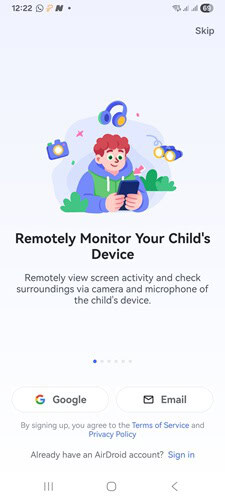
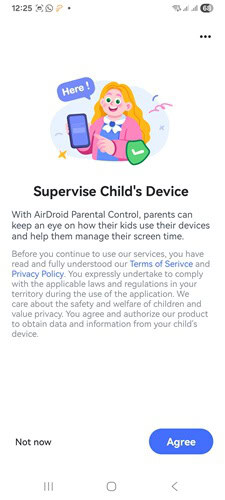
You download the AirDroid Parental Control from the Google Play or App Store. You will then select if the installation is for your phone or your kid’s phone. AirDroid has a helpful step-by-step online guide with visuals to make setting up a breeze.
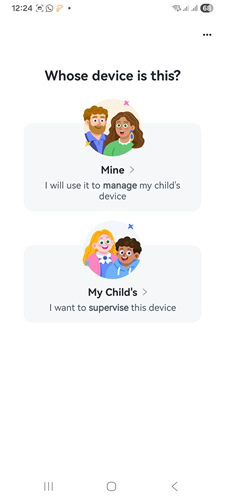
Once the appropriate apps are installed on the respective phones, you can pair the two devices using the provided binding code.
Once both phones are successfully bound, you will need to enable permissions for the activities you want to track. This may take a bit of time because you will have to activate each permission individually, but once done, you will have in your hands one of the most powerful parental control apps.
The user interface is clean, with most features accessible from a single screen. You also get a 3-day free trial to enable you to get a feel of the features, and when you are ready, commit to their convenient payment options (monthly, quarterly, or yearly).
The parental control app supports Android 7.0+ (kid devices) and iOS 13+. However, some features (e.g., call/SMS monitoring, full notification sync, screen mirroring) are Android-only.
Performance
I have been using AirDroid Parental Control for about a month and have found it very useful and convenient. The instant block feature works quickly, screen mirroring is responsive on modern devices and Wi-Fi, and geofence alerts are reliable most of the time.
The web console is convenient for quick checks on a laptop. Feature breadth, especially for Android devices, is among the best in its price range, though enabling everything (image/content detection, alerts, app/website rules, remote camera, screen mirroring) can take a thoughtful setup session. Feature parity on iOS is more limited than on Android due to platform restrictions.
Now, let us look at its performance in specific areas:
Remote Monitoring
AirDroid offers powerful remote monitoring features that let you see what’s happening on a child’s device and in their surroundings.
Top parental control features popular with parents include remote camera (Front and rear), remote screen mirroring, One-way audio, and activity notifications. All the features are just a click away on AirDroid.
Tap the Remote Camera button, and in a few seconds (usually less than 15 seconds in my experience), you will connect to the camera on your kid’s phone to see what is happening where they are.
You can switch between the front and the rear camera on their phone, whichever gives you the best footage. You can also remotely turn on the LED flash to improve visibility or turn on the mic to add audio.
The remote camera interface also adds an orientation button that, when tapped, rotates the camera by 90 degrees. This could help you get the best orientation, making sense of what you are viewing.
Accessing screen mirroring and one-way audio also took just a couple of seconds and was seamless most of the time. The remote screen-mirroring feature includes an option to turn on the mic to add audio.
Content and Social Media Monitoring
Kids can be exposed to a lot of harm on Social Media. AirDroid provides you with a couple of features to help you block adult content and protect them from harm, such as cyberbullying and online predators. The Social Content Detection feature enables you to set up keyword alerts. You will receive an alert each time the sensitive keywords occur in their social interactions.
The SMS and call monitoring feature enables you to set up keyword alerts for SMS interactions and to monitor calls, as well as blacklist, whitelist, or block numbers.
The inappropriate image detection feature will check for inappropriate images when they are shared. Combined with web filtering, this feature can serve as a porn blocker for kids, keeping them safe from porn and other age-inappropriate images.
Screen Time and App Management
Mobile Apps, especially Social Media and Games, can be addictive. The Screen time and app management features enable you to control how much time your kid spends on the phone. This tool will help you manage phone addiction and limit gaming time on phone.
AirDroid enables parents to block all apps with just a single tap via the Instant Block. Just tap the switch, and in less than 10 seconds, all Apps on the phone, except the ones in the Always Allowed list, will be inaccessible to the child.
If you have been looking for how to lock phone during homework, the Instant Block feature will come in handy.
The Downtime feature enables you to create screen time schedules. Here, you create a schedule (e.g., bedtime or school hours) during which the kid cannot use any apps on the phone except the essential ones in the Always Allowed list.
By default, AirDroid Kids, Clock, and Phone (calls) are in the Always Allowed list and cannot be removed for obvious reasons.
The App Limit feature lets you set a limit on how long the kid can spend on a specific app or a category of apps.
AirDroid also offers App usage reports that let parents see how long the kid spends in each app. You can start with Today’s Events, where you will see the most-used apps of the day.
Web Filtering
AirDroid offers powerful web filtering features that enable parents to manage the sort of content their kids can access online. You can start by viewing the browser history. From there, you can block specific websites that you consider inappropriate for their age.
You can filter in Whitelist mode or Blacklist mode. In Blacklist mode, the kid can access all websites except those you have added to the blacklist, while in Whitelist mode, the kid can only access the websites in the whitelist; all others will be blocked.
Location Tracking
AirDroid features Real-time GPS tracking and Location history, enabling parents to see where their child is and where they have been.
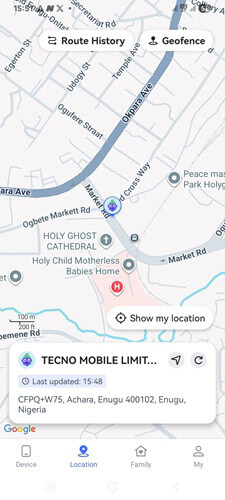
This is a parental control app with geofencing alerts. You can create a geofence with a radius between 100m and 1000m. You will receive an alert when your child enters or leaves the geofence.
Just tap on the location icon to view the map showing their current location. Tap on the Geofence button, then tap the Add geofence button.
The geofence focus will appear. You can move the geofence focus and adjust the radius to cover all the areas you want inside it. Add a name for the geofence and save. You will now receive a notification when the kid enters or leaves the area.
Privacy and Safety
AirDroid states that data collected is used to deliver core services (e.g., app lists for blocking) and highlights SSL encryption and other protections on its pricing/FAQ page.
On Google Play, the developer provides a Data Safety section that outlines collection and handling practices.
As with any parental-control tool, especially those with remote camera/audio, review permissions carefully and discuss boundaries with your child.
AirDroid Pricing and Plans
AirDroid Parental Control operates on a subscription model after a 3-day free trial. The plans are structured as follows:
| Plan Tenure | Price | Number of Devices |
|---|---|---|
| Monthly | $9.99 / month | 2 devices |
| Quarterly | $19.99 (equivalent to ~$6.66/month) | 10 devices |
| Annual | $59.99 (equivalent to ~$4.99/month) | 10 devices |
Pros and Cons
| Pros | Cons |
|---|---|
| Remote screen mirroring, remote camera, one-way audio | Advanced features are Android-only (e.g., SMS/call monitoring, full notification sync, screen mirroring) |
| Full toolkit: app/website blocking, downtime schedules, instant lock, activity reports | Setup can be permissions-heavy and take 10–30 minutes per device |
| Robust location tools: real-time tracking, route history, geofencing alerts | Remote camera/one-way audio can feel intrusive, requires clear family rules, and legal awareness |
| Web dashboard (Parent Console) for management from any browser | Features available on iOS (iPhone and iPad) is limited compared to Android |
| Competitive pricing that scales to 10 devices on quarterly/annual plans | Screen mirroring/remote view works best on strong Wi-Fi; performance may vary on older devices |
| 3 Day free trial gives a way to test before you make any commitment |
Final Take
If you need strong parental controls on kids’ Android phones, AirDroid Parental Control is one of the most capable suites for the money. Just keep in mind that the most advanced features, such as remote camera and remote screen mirroring, are mostly Android-only, and take time to walk through permissions and family expectations during setup.