


Introduction
UPDF has a simple interface with which you can design professional fillable forms in minutes! Become the pro you’re meant to be: add a checkbox, with or without Adobe Acrobat!
From creating interactive forms in pdfs, and add check boxes in pdfs for your organization, school or company; learn now how to generate fillable forms so you can send requests electronically and receive answers back.
Best Ways To Adding Check Boxes Without Acrobat DC
Do you want to avoid using Adobe’s product because of its cost, or for any other reason there are various alternatives available.
Use UPDF : The Best Option
UPDF is one of the easiest and most effective alternatives for adding checkmarks to pdf if you are looking to. UPDF editor integrates form creation, editing, annotation, and conversion into one platform.
Key Features Of UPDF
UPDF can do more than just basic PDF editing. Because it includes more functionalities like adding checkboxes in PDFs.
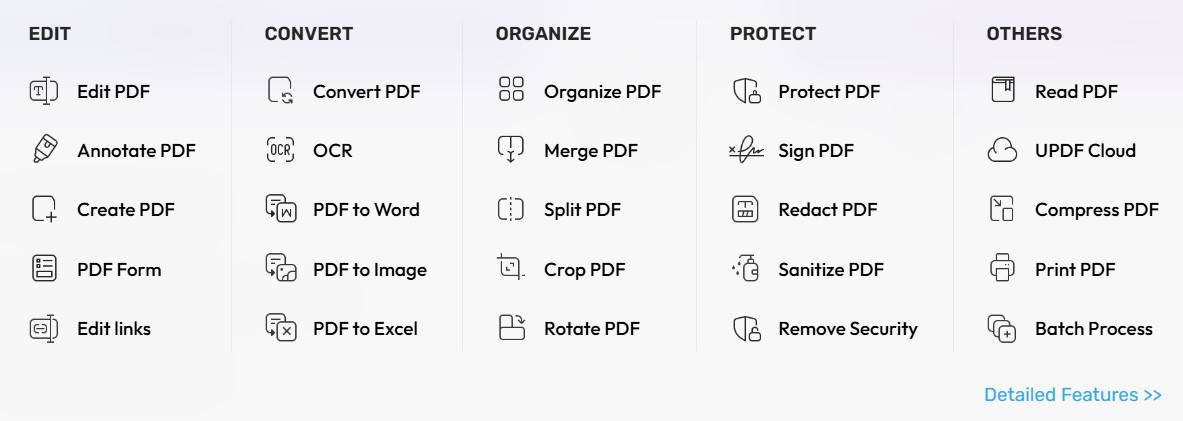

- Add checkboxes to PDFs
- Add text fields
- Add dropdowns
- Edit text and images in prior documents
- Annotate documents
- PDF to another format
- Add digital signatures
- Organize and merge documents
These characteristics make UPDF valuable for various user groups, including professionals, teachers, human resources department staff and small businesses.
Reasons For Recommending UPDF
- Very easy to use interface.
- Quick and light-weight performance.
- Cost-effective vs. Adobe Acrobat
- Cross-platform compatibility.
- Offline editing with security.
- Excellent choice for anybody who regularly completes forms.
Steps To Follow To Insert Checkbox In PDF Using UPDF
UPDF is the best tool for adding and editing checkboxes in PDF documents.
- Download and install UPDF
- Open your PDF
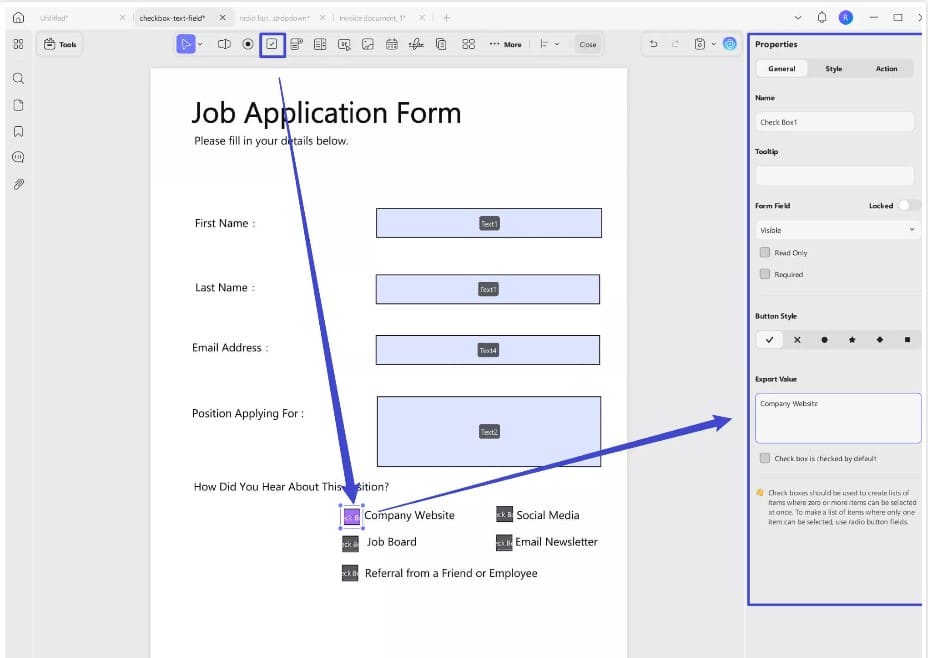
- Click on the top menu “Prepare Form”
- Choose the Check Box tool from the toolbar
- Generate new checkbox by clicking on desired location
- Proper size for checkbox (make corners)
- Double click on checkbox to change properties
- Field name, checkbox default status, border and appearance change
- Save the document.
If this is needed for multiple checkboxes throughout the document repeat above steps as many times as you like to achieve it. It is the easiest method to add a checkbox in PDF with no technical skills.
Use An Online Tool Like pdfFiller
Another option if you’d like to edit your document online is to use an online editing tool. For example, pdfFiller is an online editing tool that allows you to create interactive elements to a pdf document right from your browser and upload them to the web.

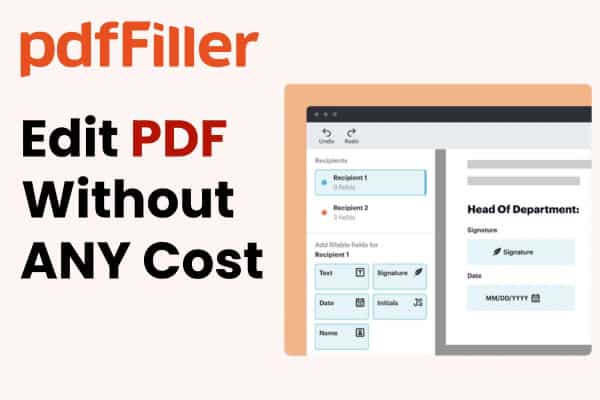
Steps To create checkboxes using pdfFiller
- Go to pdfFiller.com.
- Upload your PDF to the pdfFiller website.
- Click “Add Fillable Fields”.
- Select ‘Checkbox Tool’
- Click where you would like to place a checkbox.
- Change the size and/or settings, as needed.
- Save or Share your new version as you see fit.
Benefits of Using Online Tools
- No installation is needed
- You can access it on any device
- You can edit files quickly and easily
You should note these restrictions before using the application:
- Some of the free features may be limited in use
- Some of the free features offer less security / privacy than other types of applications
- You cannot create custom forms or generate complex & sites
- To have access, you must have an available Internet connection
Using an online tool is going to be very helpful if you’re doing non-duplicate, single-time, tasks. On the other hand, if you need to frequently review, print and create numerous pdfs and generate complicated forms then you will want to use a professional program like UPDF.
Checkbox Addition Using Adobe Acrobat DC
The Adobe Acrobat DC application’s versatility in PDF editing makes it a common choice of software for business users. Because of the types of features available, including the ability to create interactive forms, use is growing at a rapid rate.

Steps To Follow To Add Checkmarks To PDF Using Adobe Acrobat
- Open the PDF file you want to edit by double-clicking on it within Adobe Acrobat DC’s interface.
- Go to the Adobe Acrobat Toolbar and select “Tools”.
- Select “Prepare Form”.
- Adobe will automatically recognize the fields created within the original version of the PDF form and populate those fields into Adobe’s Prepare form feature.
- Select the icon that looks like a check box in the Prepare Form tool bar.
- Click on your PDF just one time and a check box will appear.
- You can resize the check box as well as move it to the area of your choice.
- You can double-click on the box to change the attributes of the box such as the default state or export value.
- Save the document.
There is a lot of similarity and variety in adding new “checkbox” items to a PDF document with an application which is many times easier than using a box to edit the same item with any of the standard desktop PDF applications out there.
However, for first-time users, Acrobat DC may be significantly more difficult to learn to use due to the overall complexity of the UI as well as the many available options on the screen for performing basic functions.
Disadvantages Of Using Adobe Acrobat Dc
The cost of subscription to Acrobat DC is relatively high, and the size and complexity of the application make installation cumbersome and slow. New users also experience a difficult learning curve in learning how to use the application, as many standard tasks have multiple UI procedures available.
However, if you wish to quickly learn how to create checkboxes in a PDF document, using UPDF would be the best choice much easier and quicker than Acrobat DC.
How Can I Add Interactive Form Fields To PDF Except For Check Boxes?
A checkbox is one of the many types of user-interactive fields available for user-input; however, user-input can be created using many types of user-interactive fields (textboxes, dropdowns, etc.), and to create very detailed user input, you have to give your users a lot of flexibility to create unique objects.
More types of interactive input fields created with UPDF:
UPDF allows you to add other types of input fields in addition to checkboxes such as;
- Text box for adding a user’s address, name, and description
- Radio button for selecting a single option from multiple options
- Dropdown box for selecting an item from a list of pre-specified values
- Listbox for selecting multiple items.
- Button for executing actions, e.g., Submit and Reset.
Using this set of tools allows you to easily create surveys, registration forms, contracts, and completed applications.
Add More Fields to UPDF Forms
- Open UPDF and find the PDF that you want to edit.
- Click on the “Prepare Form” button.
- Click on the type of field you would like to create in the toolbar.
- Click on the desired location in your document to create the field.
- Adjust the size, alignment and position of the field as needed.
- Click the properties icon to customize the field so that it meets the requirements you have from formatting; to validation, to required/not required, etc.
- Save your document.
To test that the completed fields in your document are functional, you can switch to the fill mode in UPDF.
Conclusion
UPDF is an outstanding resource to edit PDFs that is affordable and easy to use. With all the features needed to create professionally designed fillable PDF forms from checkboxes, text fields, dropdowns, and radio buttons, UPDF makes it easy for you to produce professional fillable PDFs. Get your version of UPDF and start creating your own professional fillable PDFs today.