

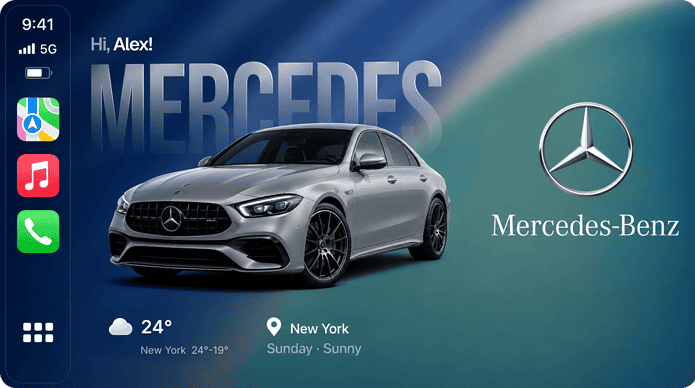
A wireless CarPlay adapter does one job: it removes the cable. You plug a small dongle into the USB port that already runs wired CarPlay; it pairs over Bluetooth, then holds the session over Wi-Fi. The screen afterward is identical. Same grid, same chime, same apps. You pay $40-90 to skip a cord, not to redesign anything.
That distinction matters, because the product photos suggest otherwise. Ottocast’s Mini Cube 3.0 sells for $44, the U2AIR Pro for $59, Aluratek’s for $69.99 — every one converts factory-wired CarPlay to wireless without touching a pixel of the interface.
An adapter also can’t add CarPlay to a car that never had it; it needs a port that already shows the Apple screen.
So what does the money change, and what stays put?
| What the adapter changes | What stays exactly the same |
|---|---|
| No cable — reconnects in ~2 seconds on start | The fixed Apple grid and icon order |
| Phone can live in your pocket or bag | The two-tone connection chime (no iOS toggle to mute it) |
| Dual-band Wi-Fi keeps maps and audio stable | Lyrics — native support is Apple Music only |
| Steering-wheel controls, Siri, and calls all work | Your five main slots still hold Apple’s fixed widget set |
None of it moves because you went wireless. The chime has been the same two soft beeps since 2014, and Apple ships no setting to mute it. Lyrics look richer in the ads, but as of iOS 26.2 only Apple Music and Spotify feed synced lyrics to CarPlay natively — and Apple Music’s full-screen lyrics hide your map while they play.
The part the adapter leaves untouched
iOS 26 did bring real changes to CarPlay — just none that an adapter unlocks. Widgets arrived for the first time: swipe to a side screen for weather, calendar, or home controls — a software update, live on any connection.
Here’s where each native path stops.

1. Pick the right adapter first (Settings → General → CarPlay)
Open Settings → General → CarPlay and confirm your car is listed. No car there, no adapter. Match the plug (USB-A vs USB-C) and your car’s CarPlay version before you buy; a mismatch is the top reason for returns. You can match an adapter to your car’s USB port and skip the compatibility roulette.

2. Change the chime — where the free route stops
There is no menu for this. The free path is a Shortcuts automation: Shortcuts → Automation → When CarPlay Connects → Play Sound. It runs, but the default chime still fires first, and your clip lands 1-2 seconds late over the top of it. An app that owns the connect event swaps the sound instead of stacking on it. You can build a connect sound that replaces the chime from a clip under 1.5 seconds.
3. Get lyrics beyond Apple Music (Settings → Music)
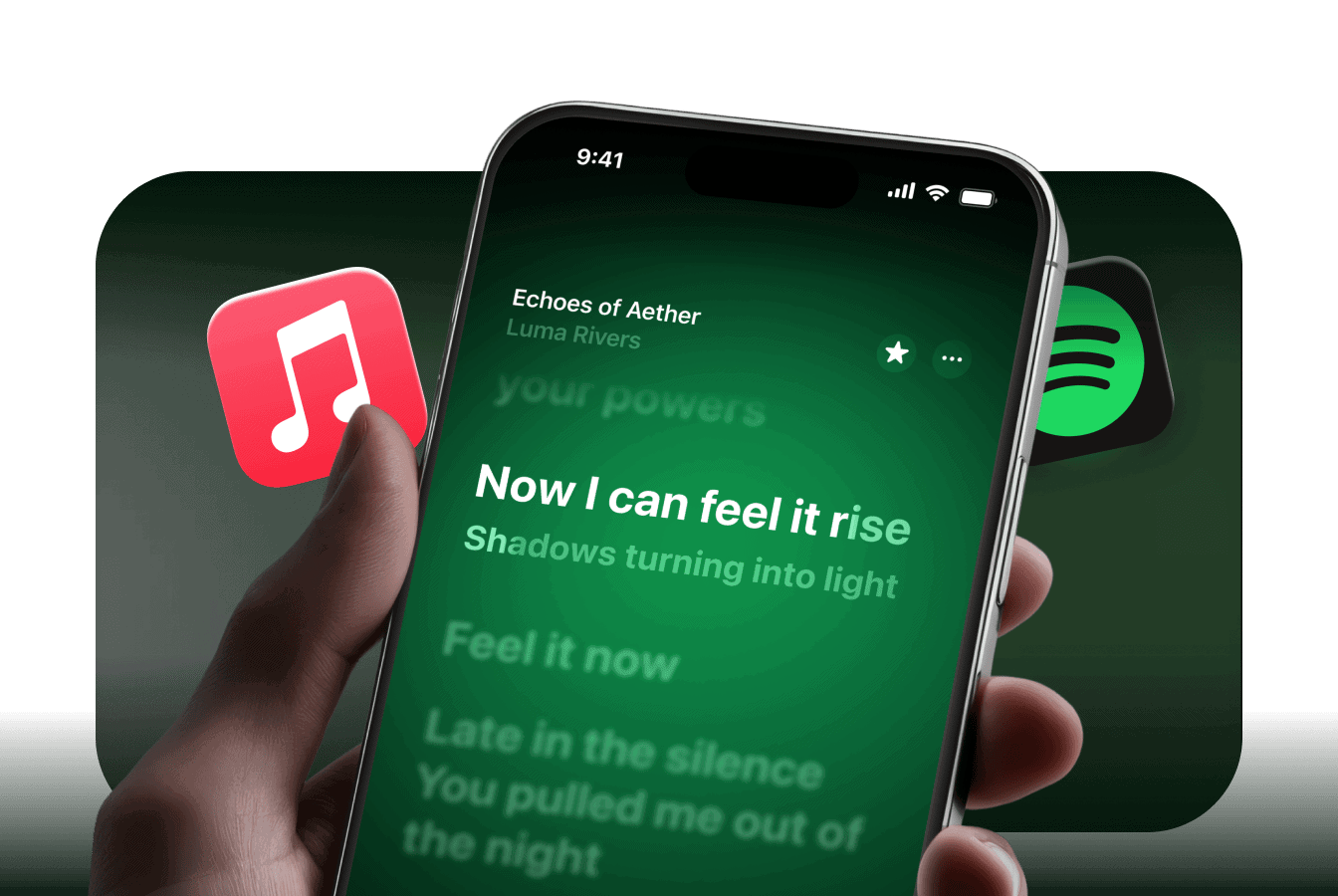
For Apple Music, turn on Settings → Music → Live Activities and lyrics appear — full-screen, covering your map. Spotify has fed its own since December 2025. Everything else — YouTube Music, Tidal, Amazon Music — shows nothing natively. A lyrics widget that reads the now-playing track is what fills that gap across services.
4. Fill all five slots with widgets — where the free route stops
This is the feature the ads really sell, so weigh it honestly. iOS 26’s free widget path is that one side screen — a fixed handful Apple chose, on a panel you can’t edit, that never touches the five main slots you stare at while driving.

Car Play Connect ships eleven widget templates — photos, now-playing music, reminders, a compass — and drops them into all five main slots, not Apple’s single spillover screen.
The app doing steps 2, 3, and 4 above is Car Play Connect: Auto Sync — a free download that does all three on first launch: eleven widget templates, a swapped startup chime, and synced lyrics past Apple Music. It’s rated 4.6 from 2,669 ratings and needs iOS 16.3 or newer. For a car with no CarPlay at all, its Mount Mode runs the dashboard on the phone itself.
A five-point check before you spend $40-90
- Does Settings → General → CarPlay already list your car? If not, an adapter can’t help.
- Is your port USB-A or USB-C? Buy the matching one, not the most-reviewed one.
- Do you mostly want the cable gone? The adapter alone delivers exactly that.
- Do you want your own widgets in the five main slots (plus a custom chime or lyrics)? That’s software — no adapter adds it.
- Is your iPhone on iOS 16.3 or newer? Below that, the widget and lyrics options don’t apply.
Three honest ways to spend the money
- The adapter alone ($40-90). Removes the cable, changes nothing else. Right call when the wire is your only complaint.
- Free Shortcuts plus native settings ($0). Live Activities for Apple Music lyrics, a Shortcuts automation for sound, and iOS 26’s one fixed widget screen. Real, but the sound plays over the chime, the lyrics cover your map, and that widget panel can’t be edited.
- A free customization app. Handles sound, lyrics, and eleven widget templates across all five main slots — past iOS 26’s single fixed side screen — yet it can’t make CarPlay wireless.
The software route has one hard limit: an app can’t cut your cable, so if going wireless is the whole point, you still buy the adapter. And the widget slots need iOS 26 — older cars pair fine but won’t render every panel.
FAQ
Does a wireless CarPlay adapter change the CarPlay layout? No. It converts wired CarPlay to wireless and leaves the grid, icons, and chime exactly as they were.
Can I use an adapter if my car has no CarPlay? No. The dongle needs a factory wired CarPlay port to emulate. Without one, there is nothing for it to connect to.
Why does my adapter still play the default chime? Because the chime is fixed in iOS with no toggle to mute it. Only an app that intercepts the connect event replaces it; Shortcuts just plays over it.
iOS 26 already gave me a widget screen — why the app? That free screen is one fixed side panel (weather, calendar, home) you can’t edit. The app puts eleven templates you choose — photos, music, reminders, compass — into all five main slots the free screen never touches.”